WordPress Dashboard Won't Load: 8 Causes and How to Fix Them WordPress Not Working: What to Check Before Panicking WordPress Site Stuck After Update: How to Recover It WP-Admin Error 500: Common Causes and Effective Solutions How to Identify Which WordPress Plugin Is Really Slowing Down Your Site Without Guesswork WordPress Migration Without Downtime: Professional Procedure to Avoid SEO Traffic Loss WordPress Not Sending Emails: Complete Step-by-Step Guide to Fix SMTP Issues WordPress not working? Wp-admin won't open: causes and solutions Case Study: Comprehensive Cleanup of a Compromised Joomla 3 Site AI Article Generator for Joomla 3: A Practical Case of Editorial Automation in Two Languages Key SEO Parameters to Regularly Check in Google Search Console Joomla and Incorrect URL Generation with Specific Menu Items Automatic Content Creation in WordPress Without Plugins: My Experience with OpenAI APIs How to block SiteGround WordPress automatic updates Yootheme Pro, Virtuemart and VMuikit: integration via dynamic fields for Joomla ecommerce WordPress Dashboard Won't Load: 8 Causes and How to Fix Them WordPress Not Working: What to Check Before Panicking WordPress Site Stuck After Update: How to Recover It WP-Admin Error 500: Common Causes and Effective Solutions How to Identify Which WordPress Plugin Is Really Slowing Down Your Site Without Guesswork WordPress Migration Without Downtime: Professional Procedure to Avoid SEO Traffic Loss WordPress Not Sending Emails: Complete Step-by-Step Guide to Fix SMTP Issues WordPress not working? Wp-admin won't open: causes and solutions Case Study: Comprehensive Cleanup of a Compromised Joomla 3 Site AI Article Generator for Joomla 3: A Practical Case of Editorial Automation in Two Languages Key SEO Parameters to Regularly Check in Google Search Console Joomla and Incorrect URL Generation with Specific Menu Items Automatic Content Creation in WordPress Without Plugins: My Experience with OpenAI APIs How to block SiteGround WordPress automatic updates Yootheme Pro, Virtuemart and VMuikit: integration via dynamic fields for Joomla ecommerce
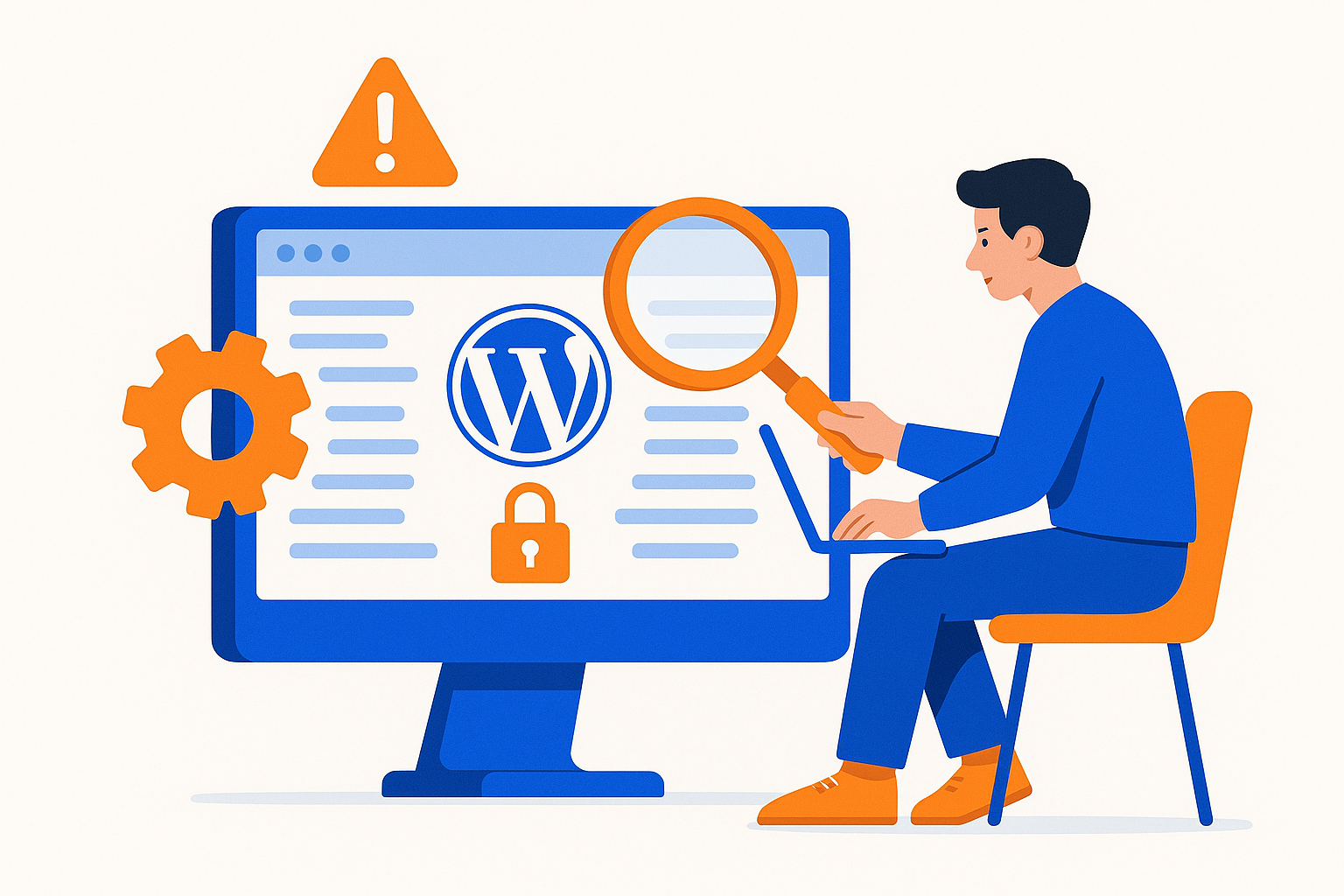
WordPress Site Stuck After Update: How to Recover It

WordPress Site Stuck After Update: How to Recover It

Author Graziano De Maio - Gdmtech
I wish you a good read and remember: if after reading this article you need help, don't hesitate to contact me.
Author: Graziano De Maio | Founder of Gdmtech
Table of contents

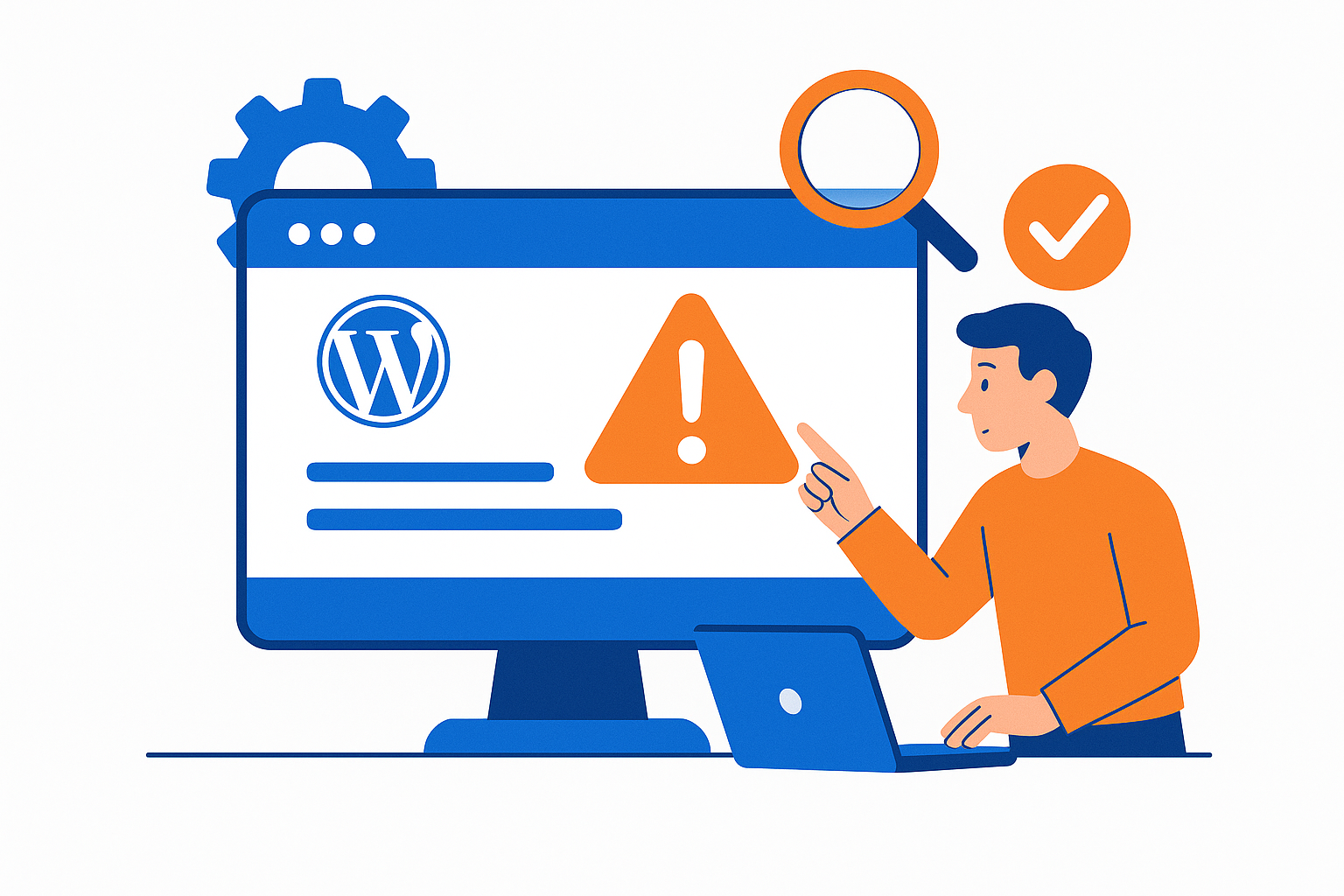
How to Recover a WordPress Site Stuck After an Update

An update to WordPress core, plugins, or themes can sometimes cause your site to become unresponsive or inaccessible. Addressing this issue promptly and effectively is key to minimizing downtime and regaining control.

contacts

Common Causes of Site Lockup After Updates

  • Plugin conflicts or incompatibilities with the theme
  • Code errors introduced during updates
  • Corrupted or missing system files
  • Temporary cache conflicts

Immediate Steps to Recover Your WordPress Site

  1. Use the Recovery Mode if available to identify problematic plugins or themes.
  2. Deactivate plugins via FTP or directly through the database to isolate the issue.
  3. Restore a previous version of the theme or plugins when updates cause errors.
  4. Check core WordPress files and consider a manual reinstallation if necessary.
  5. Clear site and browser caches to avoid loading outdated content.

Best Practices to Avoid Site Lockups After Updates

  • Always perform a full backup before applying updates.
  • Update plugins and themes one at a time rather than all at once.
  • Test updates in a staging environment before deploying them live.

FAQ: Common Questions About WordPress Site Lockups

Q: How can I identify which plugin caused the lockup? A: Using WordPress Recovery Mode or sequentially deactivating plugins helps pinpoint the culprit.

Q: Can I restore my site without data loss? A: Yes, by relying on recent backups or WordPress’s automatic restore features.

Q: When should I seek professional support? A: If the site remains stuck after initial troubleshooting or if you’re uncertain about recovery steps.

For detailed assistance on access issues after updates, refer to our dedicated resources or reach out via contacts.

Author Graziano De Maio - Gdmtech
I wish you a good read and remember: if after reading this article you need help, don't hesitate to contact me.
Author: Graziano De Maio | Founder of Gdmtech
Graziano De Maio, Webdeveloper, SEO specialist
Graziano De Maio
Web Developer, SEO Specialist
Gdmtech Web Agency
Via Stefanardo da Vimercate 28 - (Milan)
Via Spinedi 55 - Postalesio (Sondrio)
Info & Contacts