WordPress not working? Wp-admin won't open: causes and solutions

- Wordpress
- July 15, 2026
Table of contents

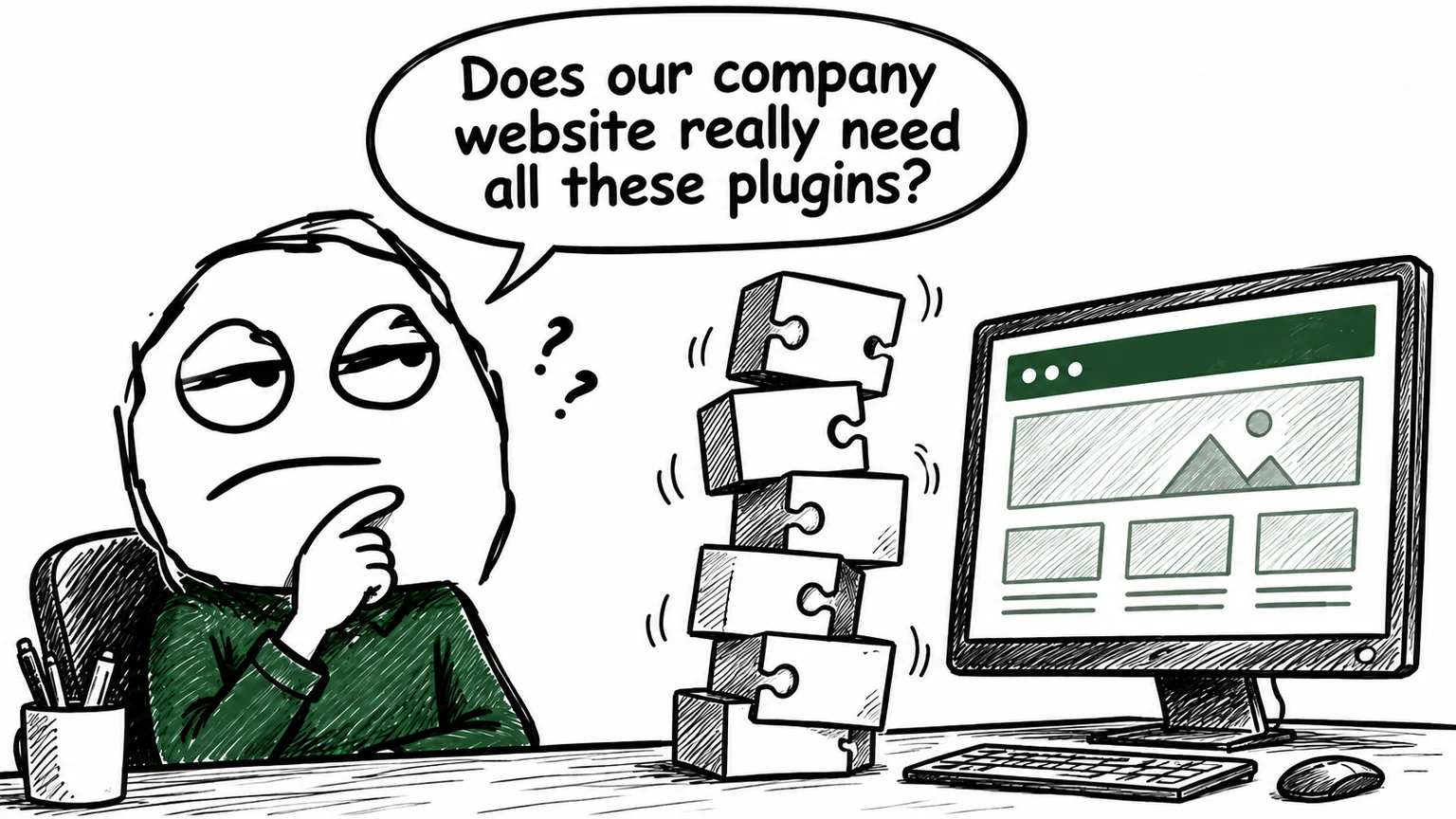
If WordPress is not working, the dashboard won’t open, or you have blocked access to wp-admin, it’s normal to think the worst. In some cases an error message appears, while in others a blank page is displayed or the login page keeps reloading without allowing access. For technical help, see my WordPress support service.
As part of my WordPress Support service, I
very often work on blocked WordPress websites. The causes can be very
different: a failed update, an incompatible plugin, a PHP error, a
misconfigured .htaccess file, or a malware infection.
If you’re worried about your website and don’t want to continue reading, you can contact me immediately. I’ve restored blocked WordPress websites in as little as half an hour, avoiding long periods of downtime.
Why WordPress is not working and the dashboard won’t open
When wp-admin is not working, access to the administration panel is blocked, or the WordPress website appears to be completely unavailable, in most cases the causes fall into two categories.
- Technical issue: the PHP version installed on the server is not
compatible with WordPress, a plugin conflicts with the system, the
.htaccessfile is misconfigured, or an update did not complete successfully. - Malware or hacker attack: automated bots are able to find vulnerabilities in outdated versions of the WordPress core or plugins, gain access to the system and cause damage, including preventing access to the administration panel. See these examples of malware that attack WordPress.
An experienced WordPress technician can quickly perform a series of checks to determine why wp-admin is not working and identify the most suitable solution.
Blocked access to wp-admin: the most common symptoms
When a WordPress website is blocked, the problem doesn’t always appear in the same way. The cases I encounter most frequently are:
- the /wp-admin page displays a blank page;
- a 500 error appears;
- the login page keeps reloading without accessing the dashboard;
- the message “There has been a critical error on this website.” appears;
- WordPress remains blocked after an update;
- the public website works but the dashboard is no longer accessible;
- neither the website nor the administration area can be accessed.
These symptoms already make it possible to narrow down the possible causes and speed up the diagnosis.
Wp admin no longer working? The importance of acting quickly
If wp-admin is not working, whether due to malware or a technical problem, it’s important to act quickly.
If the website remains unreachable for many hours or even days, you risk losing visibility in search engines, compromising the user experience and, in the worst cases, losing content if no recent backups are available.
WordPress website blocked after an update
Very often the problem appears immediately after updating the WordPress core, a plugin or the theme.
The most common causes are:
- incompatible plugins;
- outdated theme;
- incompatible PHP version;
- interrupted update;
- insufficient PHP memory;
- errors introduced by theme customizations.
Before making any changes, it is always advisable to understand the origin of the error, avoiding random actions that could make the situation worse.
What to do when WordPress is not working and wp-admin won’t open
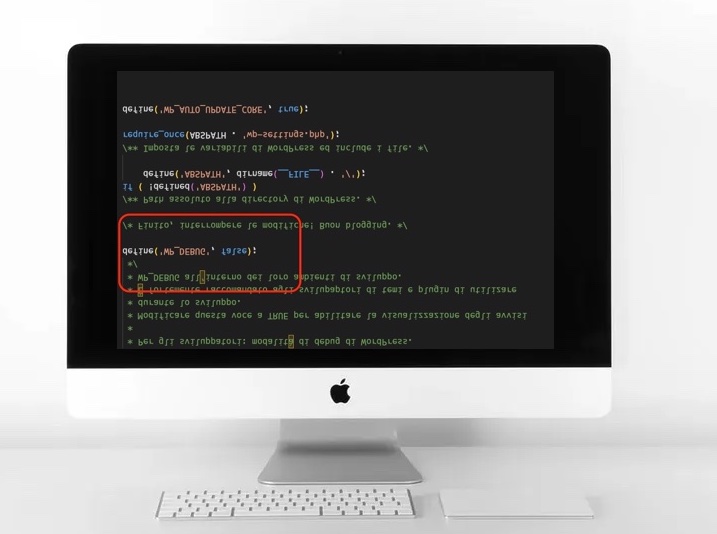
If wp-admin is not working, displays a blank page or shows a critical error, the first thing to do is enable WordPress debugging.
define( 'WP_DEBUG', true );
Once you reload the WordPress login page, an error message will often be displayed indicating the plugin, theme, file or PHP function that is causing the problem.
If the cause is a plugin, how can you disable it if you can’t log in?
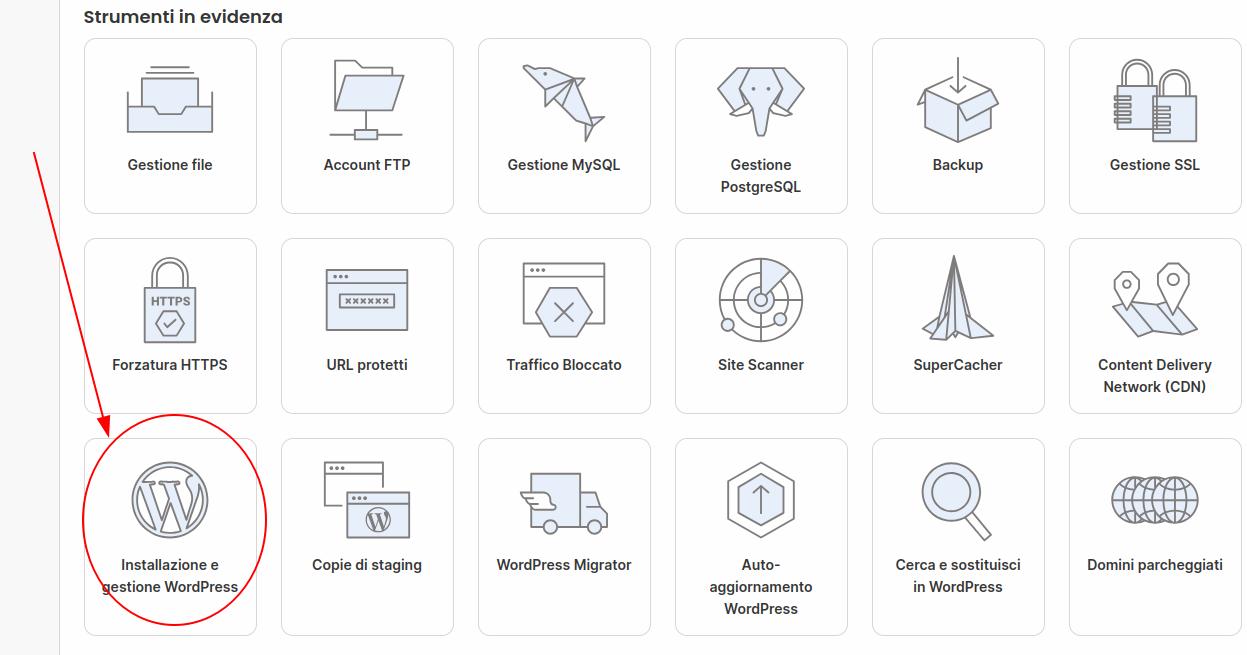
If the error message clearly indicates a plugin, connect via FTP using FileZilla and open the following folder:
/wp-content/plugins/
Then:
- rename the plugin folder;
- move it to a temporary folder;
- move it outside the
pluginsfolder; - delete it if you’re sure it’s no longer needed.
WordPress not working? When it’s time to ask for assistance
If your WordPress is not working, the dashboard won’t open, you have blocked access to wp-admin, or your WordPress website is blocked, avoid random attempts that could make the situation worse.
If you don’t have a trusted webmaster, you can contact me