How to create a Joomla 6 module with YOOtheme Builder

- Joomla
- October 6, 2026
Table of contents
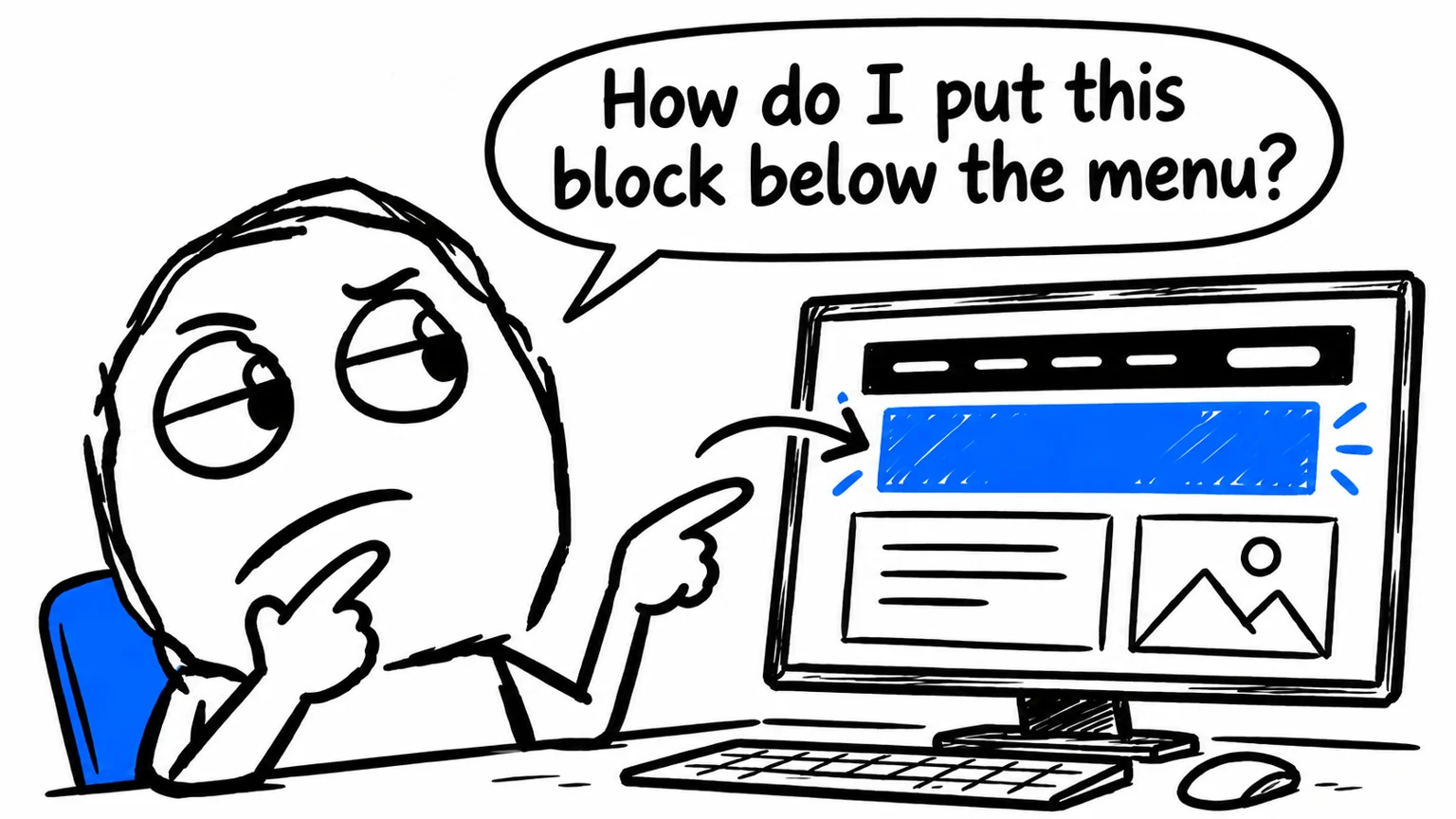
You do not need to edit every page to add a block of text, images and buttons below your website’s navigation. With YOOtheme Builder, you can create a Joomla module, design its content visually and publish it in a position that your template actually supports.
A Custom HTML module is still a good choice for a short message or a snippet of markup. The Builder is useful when you need several elements, control over columns and spacing, and a design that matches your website without writing all the code yourself.
This guide is intended for Joomla 6 and the currently documented YOOtheme Pro interface. Labels may change with language settings and updates. The key is to distinguish the module’s content, its position and its page assignments.
YOOtheme Builder for Joomla modules: how it differs from pages
A page built with YOOtheme Page Builder defines the main content layout: for example, a service page with images, text and buttons.
A module is a separate block that you can reuse across different parts of the website.
For example:
- Builder page: a complete description of a service.
- Builder module: a banner with a message and a button displayed above several pages.
For a broader look at custom layouts and integrations, read about YOOtheme design and development for Joomla and WordPress.
The module gives you one version of the block to maintain. When the message changes, you update it once rather than editing every page.
Both use the same visual building tools, but the editing context differs. You are working on a module, rather than the article layout currently displayed in the preview.
How to create a module with YOOtheme Builder
Before starting, check that YOOtheme Pro is installed and that the intended template style is used on the relevant pages.
In the Joomla administrator:
- Open Content → Site Modules.
- Click New.
- Find and select the Builder module type provided by YOOtheme Pro.
- Enter a clear title, such as “Information banner below navigation”.
- Choose an easy position to test, such as
top. - To make the block available to visitors, set Status: Published and an appropriate access level, normally Public.
- Save the module to store its initial settings.
Choose Builder, rather than the standard Custom module used for text and HTML.
If it is missing from the list, check the YOOtheme Pro installation before trying to build the layout in a Custom HTML module.
How to open YOOtheme Builder from a Joomla module
Open the module you have just created and click the YOOtheme button. In the current interface, this takes you to the Modules panel.
Click the Builder module you want to edit in that panel to open its visual layout editor.
To avoid editing the wrong content:
- check the selected module’s name;
- navigate the preview to a page where the module is assigned;
- check that the page uses the correct YOOtheme Pro template style.
Older guides may show different buttons: YOOtheme has changed the module editing workflow over time.
How to add sections, rows, columns and elements
Start with top so that you can build a block containing a complete section.
- Click New Layout if the module does not yet have a layout.
- Add a section.
- Set its background and padding.
- Edit the row and select a two-column layout.
- Add a Headline element and a Text element to the first column.
- Add a Button element to the second column.
- Enter the button label and select its destination.
- Check how the columns behave on smaller screens.
A simple example could use:
- Heading: “Need help with your website?”
- Text: a short sentence explaining the service.
- Button: “Get in touch”, linked to your actual contact page.
Each building block has a different purpose. The section defines the overall visual area, the row arranges its columns, and the elements contain the content.
The structure depends on the module position. Builder modules published outside top and bottom use rows and columns without sections. If a navbar module does not have the same section structure as your top module, that is expected.
How to save a YOOtheme Builder module
When the block is ready, click Save Layout to store the visual layout.
Then return to the Joomla module settings and save any changes to its position, status or menu assignment using Save or Save & Close.
Treat these as separate tasks:
- saving the Builder layout;
- saving the Joomla module settings.
Before leaving, reopen the module to confirm that its content is present. Finally, visit the frontend. The preview helps you design the block, but the final check should use the page your visitors actually see.
How to assign a module position in YOOtheme Pro
In the Joomla module settings, find the Position field and select a position belonging to the template in use.
For your first test, use:
Position: top
Status: Published
Access: Public
Menu Assignment: On all pages
Show Title: Hide
Hiding the Joomla module title is useful when the visual layout already contains a heading.
Save and open the website. The module needs to be published, assigned to pages and placed in a usable position.
Typing a name in the Position field does not automatically create a location in the template. Use a supported position or one explicitly rendered inside the Builder.
A YOOtheme Builder module in the top position
Suppose you want an information banner immediately below the navbar and above the page content.
With a standard header, top is the position to test: it holds content above the main content area.
Follow these steps:
- Assign the module to
top. - Create a section containing a short message and a button.
- Keep the padding modest so the banner does not take up too much vertical space.
- Hide the Joomla module title.
- Save the layout and module settings.
- Check the home page, an internal page and the mobile layout.
The result also depends on the header configuration. Transparent or overlapping headers can change the visual relationship between the navigation and the first section.
For a Builder module in top or bottom, control the background, width and padding within the module’s sections. The corresponding global settings in Layout → Top and Layout → Bottom are ignored.
How to assign the module to all pages or selected menu items
Open the module’s Menu Assignment tab.
For a message shared across the website, select On all pages.
To display the block only in certain areas:
- Select Only on the pages selected.
- Tick the relevant menu items.
- Save.
- Visit one included page and one excluded page.
For example, you could assign a support banner to the “Services” and “Support” menu items while leaving other sections out.
Standard module assignment follows Joomla’s menu item context. If the same content can be reached through different navigation paths, test each path: the active menu item is the relevant reference.
YOOtheme Builder modules on Page Builder pages
A Page Builder layout does not automatically remove modules outside its main content area. You can use a block in top or bottom alongside a visually built page.
The sidebar is an exception: it is not automatically rendered next to the content on Builder pages.
To include it:
- Open the page layout.
- Create a side column.
- Add a Position element.
- Select
sidebar.
Alternatively, the Module element loads one individual module. Position loads the modules assigned to a position. This distinction helps when you need precise control over where a reusable block appears.
Module positions available in YOOtheme Pro
The main positions to know are:
| Position | Purpose |
|---|---|
top | A block above the main content |
bottom | A block below the main content |
sidebar | A side area; explicitly include it on Builder pages |
navbar | Content in the navigation bar |
header | Content in the header |
toolbar-left, toolbar-right | Content in the toolbar above the header |
dialog | Content in the configured dialog area |
navbar-mobile, header-mobile, dialog-mobile | Content in the corresponding mobile areas |
builder-1–builder-6 | Positions rendered through a Position element |
Header areas depend on the configured desktop and mobile layouts. For example, content published in navbar should also be checked against the mobile header configuration.
Do not assume there is a position named footer. YOOtheme Pro documents a Footer Builder, available under Layout → Footer. For different footers by page or language, it also recommends using Builder modules in bottom.
Additional positions depend on the template and the website’s actual customisations.
When to use a module or add content directly to Page Builder
Choose a module when the block:
- appears on several pages;
- needs to be updated in one place;
- requires different menu assignments.
Add content directly to the page when it belongs to that page’s specific structure, such as an explanation between two sections of a service page.
You can also combine both approaches by using a Module element to place a reusable module at the required point in the page layout.
Common YOOtheme module mistakes and practical checks
If the result is not what you expected, check these cases:
- The module is missing: check status, position, access, language, publication dates and menu assignment.
- The sidebar is missing only on Builder pages: add a Position element to the layout.
- The block appears twice: check whether the template position renders it and the page layout loads it again.
- Changes in Layout → Top have no effect: edit the Builder module’s section settings.
- The heading appears twice: hide the Joomla module title if the layout already has a heading.
- The block takes up too much space on mobile: reduce padding, simplify the text and check the columns.
- Changes seem to have disappeared: check both saves and, if necessary, the cache.
For the first test, use a simple layout and a single position. Add complexity after confirming that the module is published and visible.
A reusable block without editing every page
The workflow is straightforward: create a Builder module, design and save its layout, then set its position and menu assignment in Joomla. Start with top for a banner above the main content, keeping the sidebar and footer differences in mind.
If you need shared content blocks on your website, my Joomla website support service can help you assess the available positions and set up a YOOtheme Pro structure that is easy to maintain.